PromptScout MCP beta
PromptScout MCP is in beta for eligible Growth-and-higher teams. It lets an MCP client use PromptScout context and selected actions for one approved brand without sharing a manual token.
Availability is intentionally limited during beta. If MCP access is not available in your brand's Integrations page, your team or plan is not enabled for this connection yet. This guide does not guarantee that every MCP client supports the required OAuth flow.
Before you connect
You need:
- A PromptScout account with an eligible team and a selected brand.
- Access to that brand's Integrations page.
- An MCP client your team has confirmed can connect to a remote server through OAuth.
- Authority to approve access for the selected brand and any requested write permissions.
Connect a client
- Open your brand dashboard and go to Integrations.
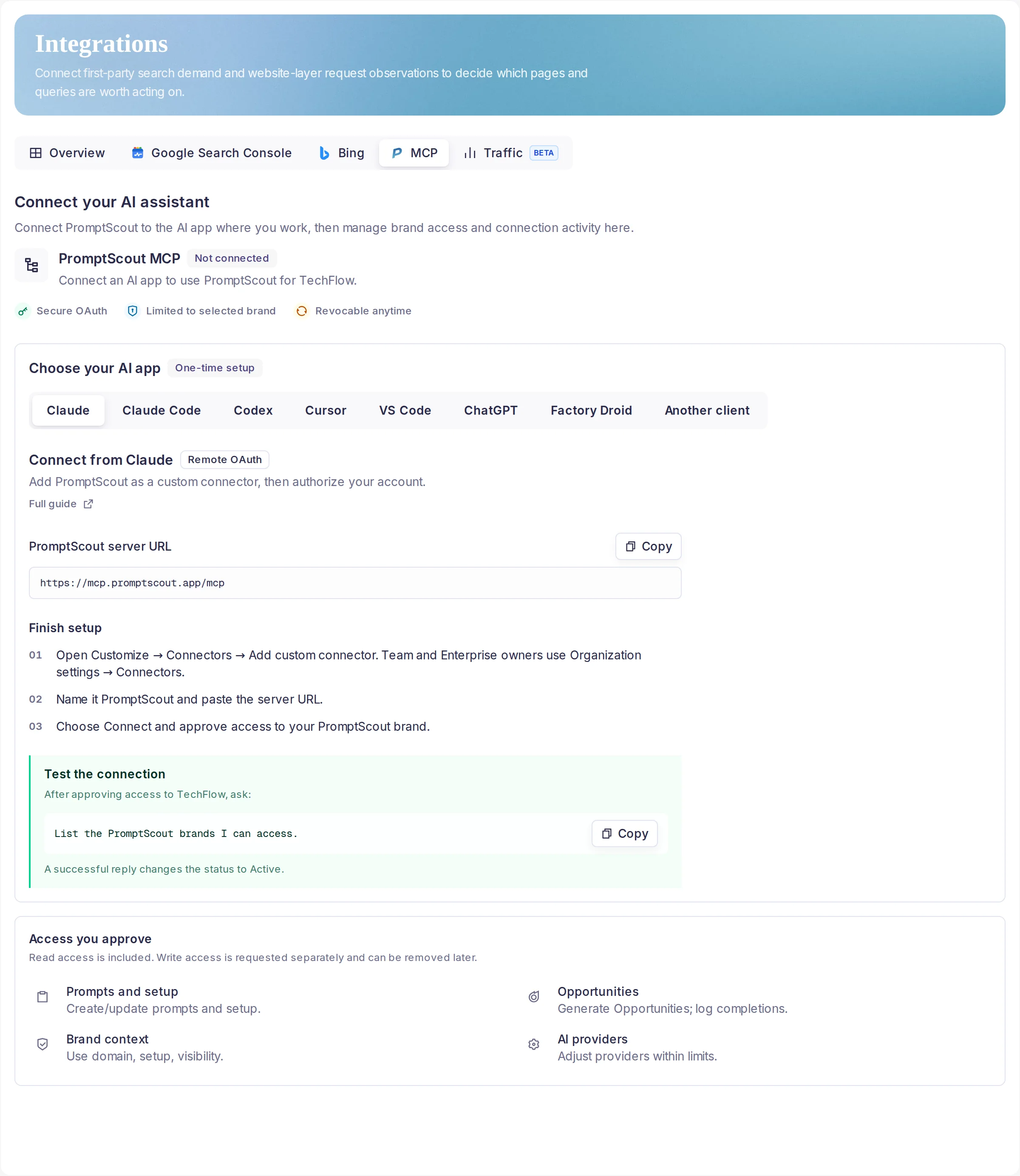
- In MCP access, copy the displayed MCP server URL:
https://mcp.promptscout.app/mcp. - Add that URL in your MCP client's server settings.
- Complete the OAuth sign-in and review the client, selected brand, and requested permissions before approving.
- Return to Integrations to confirm the connected client, authorization date, and last-used state.
Each connection is limited to the brand you approve. A connected client is not a general PromptScout account connection.
Connect a specific client
Every client below uses the same server URL and the same browser OAuth approval. Your brand's Integrations page shows the exact command or configuration for the client you pick.
Claude
Open Customize → Connectors → Add custom connector, name it PromptScout, and paste the server URL. Team and Enterprise owners use Organization settings → Connectors. Choose Connect and approve access to your brand.
Claude Code
Run claude mcp add --transport http promptscout https://mcp.promptscout.app/mcp. Then run /mcp inside Claude Code, select promptscout, and approve access in your browser.
Cursor
Add the server to ~/.cursor/mcp.json, or to .cursor/mcp.json for a single project. Open Cursor Settings → MCP, find promptscout, choose Connect, and approve access in your browser.
Codex
Run codex mcp add promptscout --url https://mcp.promptscout.app/mcp, then codex mcp login promptscout. Approve access in your browser and return to Codex.
VS Code
Run MCP: Add Server from the Command Palette, choose HTTP, and paste the server URL. VS Code discovers PromptScout OAuth and opens the approval page in your browser.
ChatGPT
Add PromptScout as a connector in Settings → Connectors, using the server URL. Approve access to your brand when ChatGPT opens the PromptScout consent screen. Connector availability depends on your ChatGPT plan.
Factory Droid
Add PromptScout as a remote MCP server with the server URL. Droid registers itself through OAuth Dynamic Client Registration and opens the approval page in your browser.
Another client
Any client that supports remote MCP over Streamable HTTP with OAuth works. Add the server URL, let the client discover PromptScout OAuth, then approve your brand. Do not paste a manual token, and do not add PromptScout permissions to the OAuth scope field.
What a connected client can do
Every approved connection can read PromptScout context for its granted brand, including brand availability, setup state, prompts and prompt groups, AI provider configuration, and current or historical Opportunities with their evidence, execution package, and persisted completion receipt. Historical Opportunity batches are returned newest first with bounded cursor pagination.
Opportunity responses include the frozen watch plan. PromptScout does not currently persist Opportunity-native measured observations, so the MCP response reports measurement as not_started before completion or unavailable after completion. It does not substitute legacy Insight observations.
Content Brief tools
An approved client with Opportunity read access can discover three Content Brief tools:
promptscout_generate_content_briefcreates and saves an editorial brief for one eligible Opportunity and requests the new-page brief format. It does not generate a full article or update an existing page. Each Opportunity has one saved brief. Repeated requests reopen it, including starter briefs; there is no regeneration or revision history. Missing context or generation-service failures can produce a labeled starter brief with assumptions and only actual input gaps. Saved legacy articles return a clearly labelledlegacy_existingresult and read link.promptscout_get_content_briefreads one saved artifact bybriefIdoropportunityId; provide exactly one identifier. The response exposes one canonicalcontentdocument, with top-levelartifactKind,schemaVersion, and saved metadata. A newcontent_brief.v3brief remains distinct from a preserved legacy article.promptscout_list_content_briefsreturns bounded summaries with an opaque cursor. It does not return full brief bodies; use the get tool for one saved artifact.
Reading saved Content Brief history does not run a model call or require a current Opportunity batch. Generation requires approved Opportunity read access and the separately consented content:write permission. Existing Opportunity write grants do not authorize Content Brief generation. Get and list require read access only. The brief includes proposed titles, the reader decision, positioning and description guidance, required sections, evidence references, and the original findings or proof the author must supply before publishing.
The OAuth approval can also request write permissions. When you explicitly approve them, a client can:
- Manage prompts, prompt groups, and enabled prompt state.
- Update enabled AI providers within your plan and billing limits.
- Generate eligible Opportunities and record a completion receipt.
- Generate and save an editorial Content Brief for an eligible Opportunity. This uses provider credits and requires the separate
content:writepermission.
Write access is separate from ordinary read context. PromptScout does not add it silently; adding a new write permission requires reconnecting the client and approving it in OAuth. Content Brief generation does not authorize Opportunity generation or completion, and MCP actions do not run monitors, crawls, publishing, outreach, or pull requests.
Manage or revoke access
Use Integrations to review each OAuth client separately. You can remove a granted write permission for a connection, or revoke that connection entirely. Revoking one client removes its access; other connected MCP clients remain connected. A revoked client must be authorized again before it can reconnect.
OAuth discovery reference
Most teams can let their MCP client complete discovery automatically. This reference is for client configuration and troubleshooting; it is not a second public documentation route.
- MCP resource:
https://mcp.promptscout.app/mcp - Protected-resource metadata:
https://mcp.promptscout.app/.well-known/oauth-protected-resource/mcp - Compatibility metadata URL:
https://mcp.promptscout.app/.well-known/oauth-protected-resource - Authorization server:
https://sbrmhaklobcvrywmsksd.supabase.co/auth/v1
An unauthenticated request to the MCP resource returns an OAuth bearer challenge that points to the protected-resource metadata. That metadata identifies the MCP resource, the authorization server, and bearer-header authentication. The authorization server publishes its own OAuth metadata; a compatible client follows that metadata to start OAuth.
PromptScout brand permissions are managed in the approval flow and are distinct from OAuth identity scopes. Do not assume custom PromptScout permissions can be supplied as arbitrary OAuth scope values. Keep the resource bound to https://mcp.promptscout.app/mcp and let the client follow the discovery metadata.
The MCP endpoint accepts POST only. It keeps no session and offers no event stream, so a GET or DELETE request returns 405. PromptScout negotiates MCP protocol version 2025-11-25 and 2025-06-18.
Troubleshooting
The client reports an authentication failure right after you approve access
Check that the client points at https://mcp.promptscout.app/mcp and uses the remote or HTTP transport, not a local command. Then remove the server from the client and add it again, so the client runs a fresh OAuth flow. Integrations shows whether PromptScout recorded the authorization.
A tool reply says the connection is missing a permission
The reply names the permission the tool needs. PromptScout does not add a write permission silently. Reconnect the client and approve that permission on the consent screen. Read context keeps working while the permission is missing.
A tool reply says the brand is not available
The connection is limited to the brands you approved. Reconnect the client and approve the brand you want, or ask the client to use a brand the connection already covers.
The client stops responding after many requests
PromptScout limits each connection to 30 MCP requests per minute. The reply names the limit and includes a retry delay. Wait for the delay, then retry.
A connected client no longer works
Check Integrations for a revoked connection. A revoked client must be authorized again. Revoking one client does not affect the others.
Next steps
- Keep the approved Brand accurate so the connection stays tied to the right business context.
- Manage the prompts a client can work with in Prompts.
- Use Weekly workflow to review Opportunity evidence and completion receipts.