Why Cloudflare rather than your app
Cloudflare sits in front of your origin, so the collector sees a request before your server does. That has one consequence worth the setup: you get crawler activity on pages that never render. When GPTBot fetches a URL and your application never runs, a collector living inside that application has nothing to report. The edge collector already saw it.
It also means your stack stops mattering. WordPress, Webflow, Shopify, a Rails app, a static bucket: if Cloudflare proxies the hostname, the collector works.
How it works
A small Worker runs on the route you choose. For each matching request it classifies the traffic with the shared PromptScout classifier, sends one observation in the background, then forwards the request to your origin untouched. Visitors notice nothing, and neither does your server.
What leaves your edge is request metadata: the hostname, the path, the method, the user agent, and safe referrer or landing attribution. Request bodies, cookies, and response content stay where they are.
Nothing about your DNS, certificates, or firewall rules changes. PromptScout has no way to touch them and never asks for the permission to.
Two ways in
| Path | Choose it when | What you do |
|---|---|---|
| Guided connection | You want the Worker installed and verified for you | Authorize Cloudflare, pick the website, press Continue |
| Manual installation | The Worker needs to live in your own Wrangler config or CI pipeline | Deploy it yourself and set the ingest token as a secret |
The guided connection is in private beta while the public Cloudflare OAuth client finishes its release checks. Until that opens, Integrations → Traffic → Cloudflare shows the manual path, which is complete and supported today.
Before you connect
The Worker only sees what Cloudflare actually serves. A hostname sitting in Cloudflare on DNS only, the grey cloud, bypasses the edge entirely, and the collector will never fire for it. Turn on the orange cloud first.
Two other preconditions. The zone has to be Active, and mail records have to stay on DNS only. Proxying a mail host breaks SMTP delivery, which is a considerably worse day than missing traffic data.
One command settles the question:
curl -sSI https://example.com | grep -iE "^(server|cf-ray)"
server: cloudflare and a cf-ray header mean you are proxied. Nothing back means you are not.
The hostname does not have to match your PromptScout brand domain. Anything inside a zone you grant will do, so you can point Traffic at docs.example.com or a marketing subdomain without touching brand settings.
Connecting, step by step
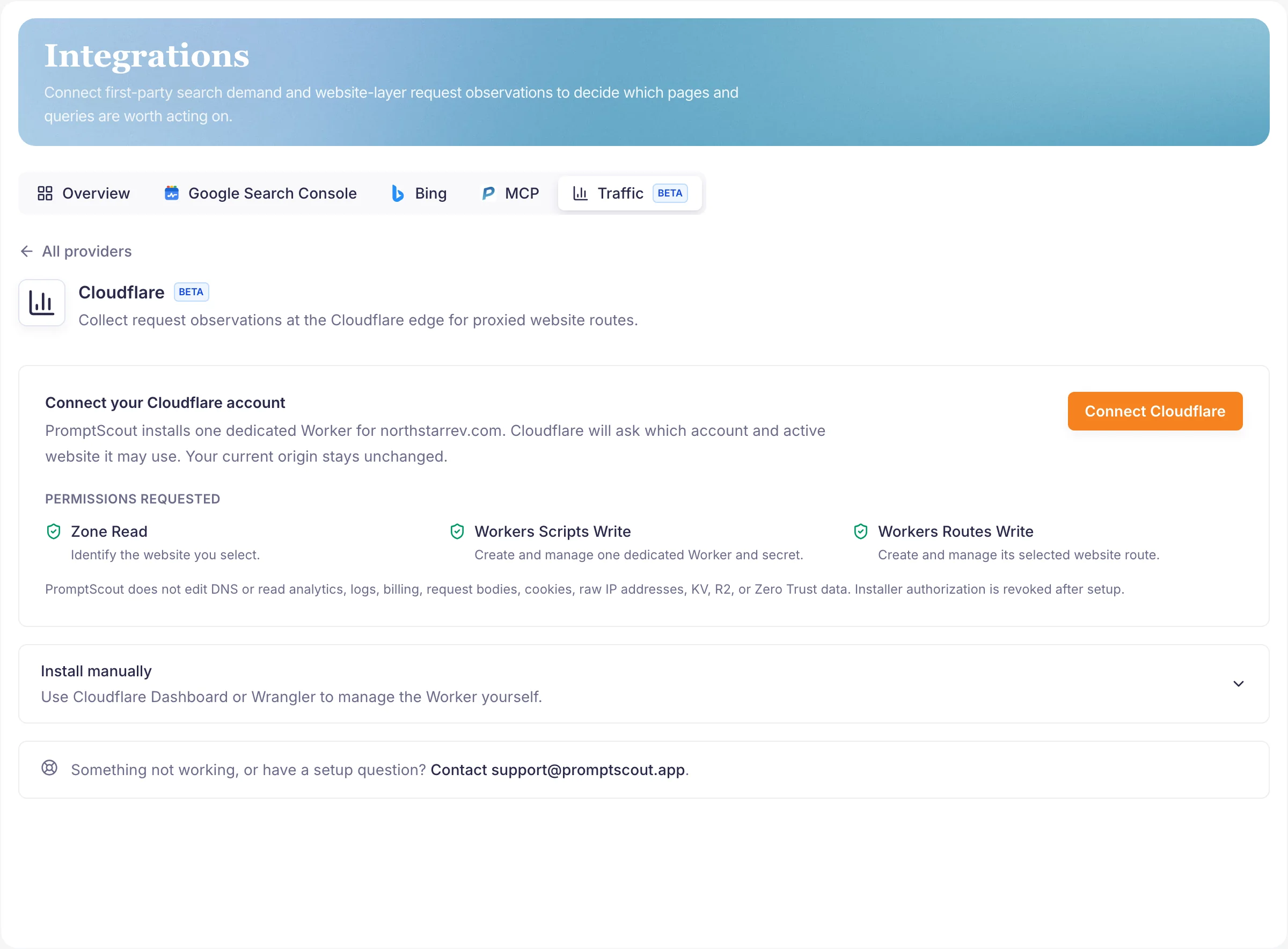
- Open Integrations → Traffic → Cloudflare in your brand dashboard.
- Press Connect Cloudflare. Cloudflare's own consent screen asks which account and which websites PromptScout may use.
- Pick the Cloudflare zone and the proxied hostname visitors actually open. Only active zones you granted appear, and the zone containing your brand hostname is preselected.
- Check what is about to be installed: the website route, the collector version, and the Worker name.
- Press Continue.
Two stages run from there. First the Worker, its secret, and the route go up. Then a setup check confirms the collector answers. That check goes to a separate probe endpoint rather than the traffic endpoint, so it never lands in your numbers.
A passing check proves the wiring, not that traffic exists yet. Real AI referral visits, user fetches, and crawler events show up as they happen, so a quiet first hour on a low-traffic site is normal. The connected card tells you what is running and where: it names the website and route scope, the collector version installed, when verification passed, and when traffic last arrived.
Permissions
Three, and only three:
- Zone Read, so PromptScout can identify the website you pick.
- Workers Scripts Write, to create and manage one Worker and its secret.
- Workers Routes Write, to create and manage that Worker's route.
Nothing else is requested. That excludes DNS, which is exactly why PromptScout cannot fix an unproxied record for you and asks you to do it instead. It also excludes analytics, logs, billing, Tail, KV, R2, and Zero Trust, so there is no route by which PromptScout could read any of them.
The installer authorization does not stick around either. It is revoked once setup finishes, and when PromptScout later needs to remove its own Worker it asks you to authorize that removal rather than holding standing access.
What gets installed
- A Worker named for your brand, along the lines of
promptscout-traffic-4f1c9a2b7d3e6058. The suffix derives from the brand, so it stays the same across reconnects. - A Worker secret holding the site-scoped ingest token.
- One route,
example.com/*, for the hostname you chose.
If any of that would collide with something you already run, the install stops. A Worker of the same name that PromptScout does not own, and an existing route already handling the hostname, both refuse rather than overwrite. Nothing on your zone is replaced.
Manual installation
Open Install manually on the Cloudflare provider page for the current guide and the site-scoped token, then deploy the Worker with Wrangler or the Cloudflare dashboard.
The collector reads these bindings:
PROMPTSCOUT_INGEST_TOKEN: the site-scoped ingest token. Store it as a secret, never as a plain variable.PROMPTSCOUT_INGEST_URL: the ingest endpoint shown in the guide.PROMPTSCOUT_QUERY_POLICY:omit(default),allowlist, orkeep.PROMPTSCOUT_PATH_POLICY:keep(default) orredact.
The full raw token appears once, right after you generate it. Only token metadata is stored afterwards, so copy it before you leave the page.
Manual and guided are separate paths. An existing manual install keeps working exactly as it is, and PromptScout will not migrate its token or swap the collector underneath you.
When setup fails
Failures name the hostname or route that was checked, so you are not left guessing which of your websites a message refers to.
| What you see | What it means | How to fix it |
|---|---|---|
| This hostname needs a proxied DNS record | Cloudflare reported no proxied record for the hostname | In Cloudflare, open DNS → Records, add or update the record, and turn Proxy status on |
| Zone is not active | The selected zone has not finished activating | Choose another active zone, or finish activation in Cloudflare |
| A required permission is missing | Not all three permissions were granted | Reconnect and approve Zone Read, Workers Scripts Write, and Workers Routes Write |
| An existing Worker route is in the way | Another Worker already handles this hostname | Remove the conflicting route, choose another hostname, or install manually |
| Verification did not complete | The setup check did not reach PromptScout, so the created resources were removed | Reconnect and retry; if it fails again, contact support with the hostname and Worker name |
| Installation did not complete | Cloudflare stopped part way through | Retry the installation; reconnect if it stops again |
Two things worth knowing. A failed setup check rolls back what was created, so a retry starts from clean ground rather than a half-install. And if Cloudflare refuses that rollback deletion, PromptScout keeps the ownership record and the temporary authorization instead of reporting a success it cannot back up, which is what makes the retry safe.
Disconnecting
Press Disconnect on the connected card. If the installer authorization has already been cleared, which is the normal state, the dialog says so and sends you to Cloudflare to authorize the removal before anything happens. Once PromptScout has that authorization, a second confirmation spells out what is about to be deleted.
Disconnecting removes the Worker, the secret, and the route. Nothing else on your zone is touched.
It also permanently deletes every Traffic record for that website. Raw events, daily rollups, ingest tokens, and setup probes all go, and there is no undo. The deletion runs only after the Worker and route are actually gone, so a failed removal leaves your data intact.
Reconnecting afterwards is fine, and you can pick a different website when you do.
Next steps
- Read Traffic for what the three Traffic buckets mean and how they feed
Opportunities. - Use Vercel Traffic if your Next.js app serves the hostname directly.
- Confirm crawler and website readiness in Website.
- Put Traffic into the weekly loop with Weekly workflow.